

In this blog explore how to send an e-mail via Raspberry Pi?
The procedure behind the email flow on the internet is SMTP(Simple Mail Transfer Protocol). The process of email delivery is actually quite similar to classical mail. An organized system takes care of your electronic envelope and through a series of steps it drops it off to your recipient. In this process, the postman is an SMTP server which is simply a computer running SMTP, which takes care of delivering emails to their recipients.
There are various tools for sending an E-mail from Raspberry Pi using Command Line Interface, with there advantages and disadvantages. Some most common tools are:
- ssmtp
- mpack
- mailutils
- mutt
SSMTP:
SSMTP is a program which delivers email from a local computer to a configured mail host (main hub). It is not a mail server (like feature-rich mail server Sendmail) and does not receive mail, expand aliases or manage a queue. One of its primary uses is for forwarding automated email (like system alerts) off your machine and to an external email address.
Installation:In Raspberry Pi ssmtp can be installed with apt using:
sudo apt update | sudo apt install ssmtp
Configurations:
For sending E-mails using ssmtp we need to edit the configuration file.Open Configuration file with:
sudo nano /etc/ssmtp/ssmtp.conf
Add and Edit the following lines:
for TLS security ->
root=postman
mailhub=smtp.gmail.com:465
AuthUser=youremail@gmail.com
AuthPass=youremailpassword
FromLineOverride=YES
UseTLS=YES
for SSL security ->
root=postman
mailhub=smpt.gmail.com:587
AuthUser=youremail@gmail.com
AuthPass=youremailpassword
FromLineOverride=YES
UseSTARTTLS=YES
Send Emails:
1. Send Email with a message:
echo “Message to send” | ssmtp recipientmail@domain.com
2. Send E-mail with mail content from a file:
ssmtp recipientmail@domain.com < /path/to/textfile

You can specify all details in the text file like:
From: useremail@gmail.com
To: recipientsemail@domain.com
Cc: ccuseremail@domain.com
Bcc: bccuseremail@domain.com
Subject: Subject Here
...Message Body
Common Errors:
1. “ssmtp: Cannot open smtp.gmail.com:465” 
Possible Solution:
Check if the device is connected with the Internet.
2. “ssmtp: Authorization failed (535 5.7.8 https://support.google.com/mail/?p=BadCredentials h13sm26343251pfo.98 - gsmtp)” 
Possible Solution:
Make Sure you have entered correct email and password in configuration file “/etc/ssmtp/ssmtp.conf”.
MPACK: Send an attachment with the E-mail
Installation:For Debian architectures ssmtp can be installed with apt using:
sudo apt install mpack

Send Emails:
1. Send Email with an attachment:
mpack -s “Attachments with mpack” /path/to/file recipientmail@domain.com

-s: Add the subject of the email
2. E-mail with subject, body, and attachment:
mpack -s “Subject, Body and Attachment” -d body.txt /path/to/file recipientmail@domain.com

From: useremail@gmail.com
To: recipientsemail@domain.com
Cc: ccemail@domain.com
Bcc: bccemail@domain.com
Subject: Subject Here
...
This is the body of the email.

Note: Not Entering the subject will open CLI interface for Subject.
Note: For running mpack ssmtp should be configured properly.
mailutils:
Installation: For Debian architectures ssmtp can be installed with apt using:
sudo apt install mailutils

Send Emails:
1. Send Email with the subject:mail -s “mailutil example” recipientmail@domain.com It will take you to CLI for the following details:
Cc: ccuser@domain.com
....
Mail Body .....
<ctrl+D>
-> Wait after pressing ctrl+D.

1. E-mail with subject and message in a single line: Echo “This is the body of Email” | mail -s ‘Subject’ recipientmail@domain.com 
mail -s “Subject” recipientmail@domain.com < /textfile/path 
You can specify all details in the text file like:
From: useremail@gmail.com
To: recipientsemail@domain.com
Cc: ccuseremail@domain.com
Bcc: bccuseremail@domain.com
...
Message Body
...
1. Specify CC and BCC Recipients mail -s “Subject” recipientmail@domain.com -c recipient2@domain.com -b recipient3@domain.com 
2. Sending Email to multiple users mail -s “Subject” recipientmail@domain.com, recipient2@domain.com 
It will take you to CLI for the following details:
Cc: ccuser@domain.com
....
Mail Body
.....
<ctrl+D>
-> Wait after pressing ctrl+D.
Note: For running mailutils ssmtp or postfix should be configured properly.
mutt:
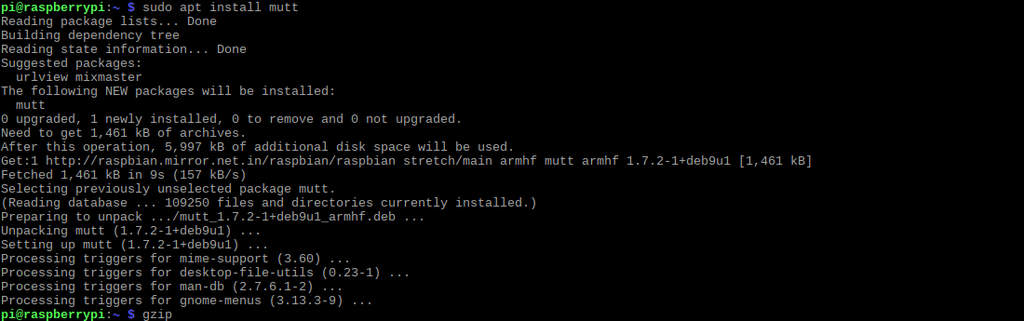
Installation:
For Debian architectures ssmtp can be installed with apt using:
sudo apt install mutt
Send Emails:
1. Send simple Email with attachment:echo ‘boody of Email’ | mutt -s “Subject” recipientmail@domain.com < mail.txt 
mutt -s “Subject” recipientmail@domain.com < mail.txt
It will take you to CLI for the following details:
Cc:
....
Mail Body.....
<ctrl+D>
-> Wait after pressing ctrl+D.
-s: Add the subject of the email
1. E-mail with attachment:
mutt -s “Subject” -a /File/to/attach -- recipientmail@domain.com < mail.txt

2. E-mail multiple attachments: mutt -s “Subject” -a /File/to/attach -a /file/to/attach/2 -- recipientmail@domain.com < mail.txt

Note: For running mailutils ssmtp or postfix should be configured properly.
Common Problems:
Returns: GPGME: CMS protocol not available.
Solution: Add “-e ‘set crypt_use_gpgme=no’”

Want to know about Raspberry Pi More? we are offering all types of Raspberry Pi boards and accessories on our online SB Components shop. So, here you can explore more about Raspberry Pi features.
Click here to Read more SB Components Blog
Check out Raspberry Pi Black Cases Collection
And also check Raspberry Pi Cases Collection





1 comment
Flipfoxfocus
After doing this I didn’t get an email sent to my phone. Instead on my pi it said “ssmtp: (raspberry pi)” what does that mean???